Users
User accounts in Upbound belong to individuals. Each user can be a member of one or more teams, which have permissions on control planes within an organization. A user can be a member of multiple organizations.
Account settings
You can change your account settings by clicking the profile photo in the top right and selecting My Account in the Upbound Console.
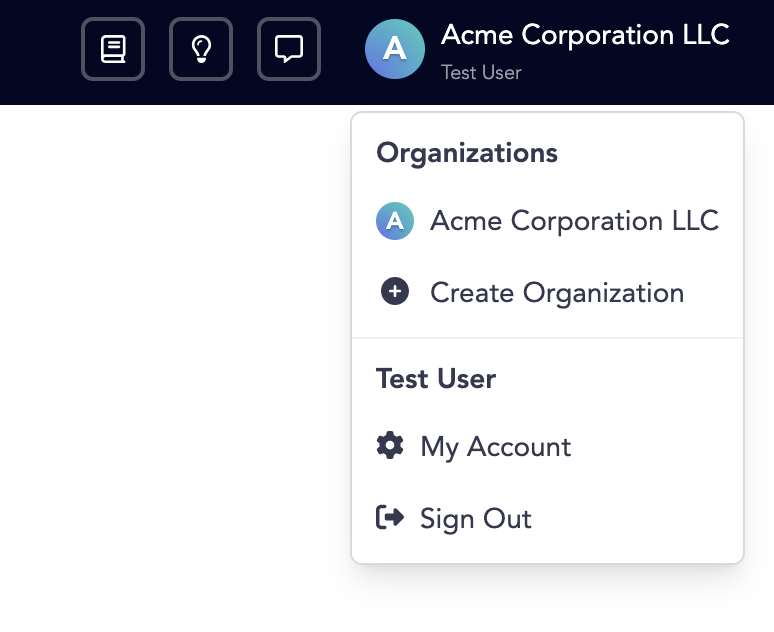
Change account information
The Account Settings screen allows you to change your password, connect to GitHub, Google or email for authentication or delete your Upbound account.
You use API Tokens to log in with the Up command-line. You can't use this token as a Kubernetes image pull secret
Create an account
Use the Upbound registration page to create a new user account.
1. Choose a registration method
Register with Upbound with your GitHub account, Google account or email.
2. Complete the registration form
Complete the form and agree to the Terms and Conditions.
3. Confirm your email
Upbound sends you an email containing a 6-digit PIN. Provide this PIN to confirm your email address.
4. Create your organization
After submitting your pin you can create your first organization. An organization lets multiple users share Upbound resources and collaborate. Create your first organization to invite teammates and manage control planes together.
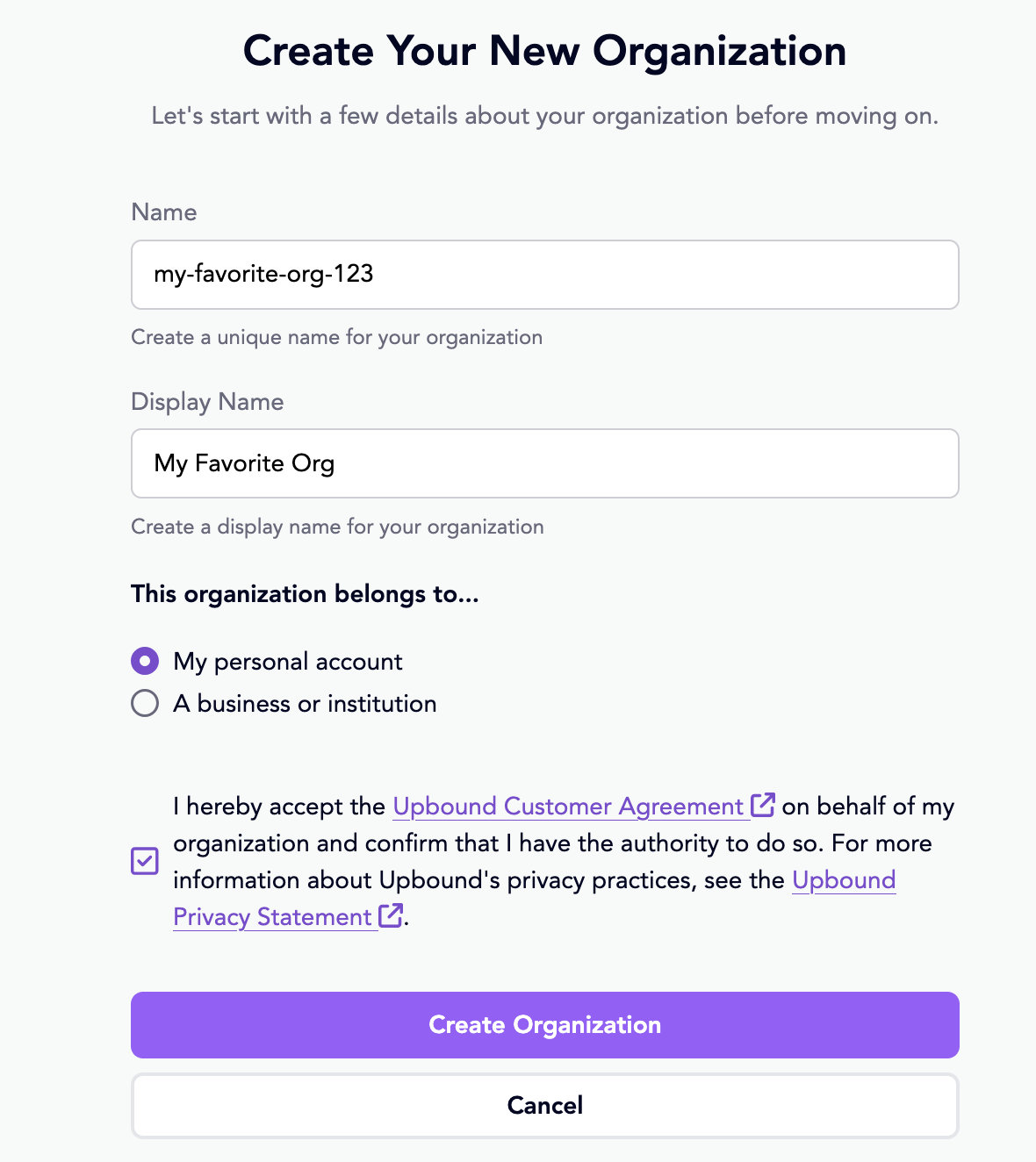
Clicking Create Organization sends you to the Upbound Console.
To make changes to your account login to accounts.upbound.io
Delete an account
Selecting Delete Account in the My Account pane sends a deletion request to Upbound support.
Organizations associated with this account aren't deleted.
If the user is the primary account for an organization, contact Upbound support to transfer organization ownership.